- Get Started
- Video Tutorials
- Knowledge Base
- FAQs & Troubleshooting
How to export products and inventory from Veeqo?
Updated on 19 Oct,2026Copy Link
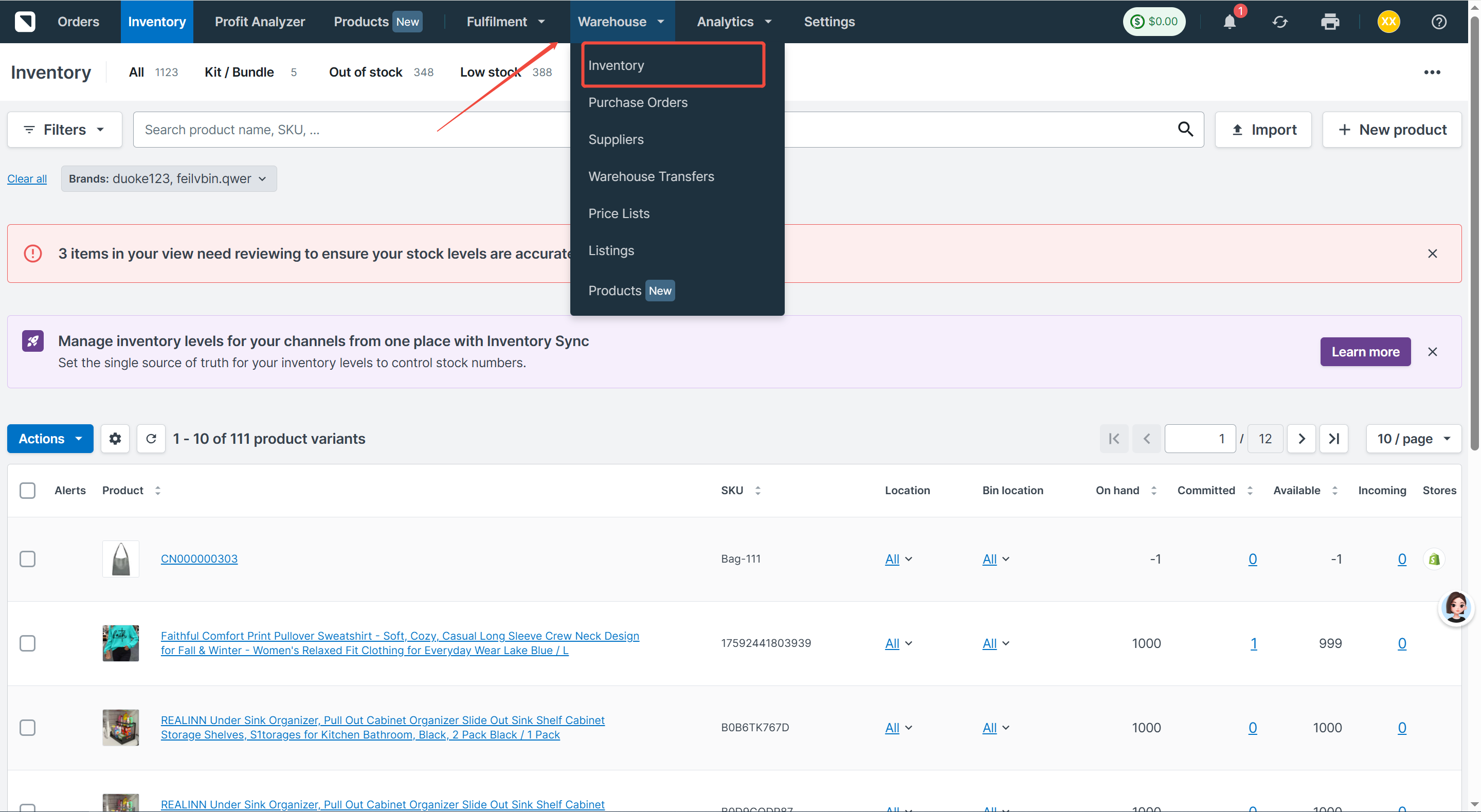
Step 1. Open the Inventory Page
Log in to your Veeqo account and navigate to the Inventory page.
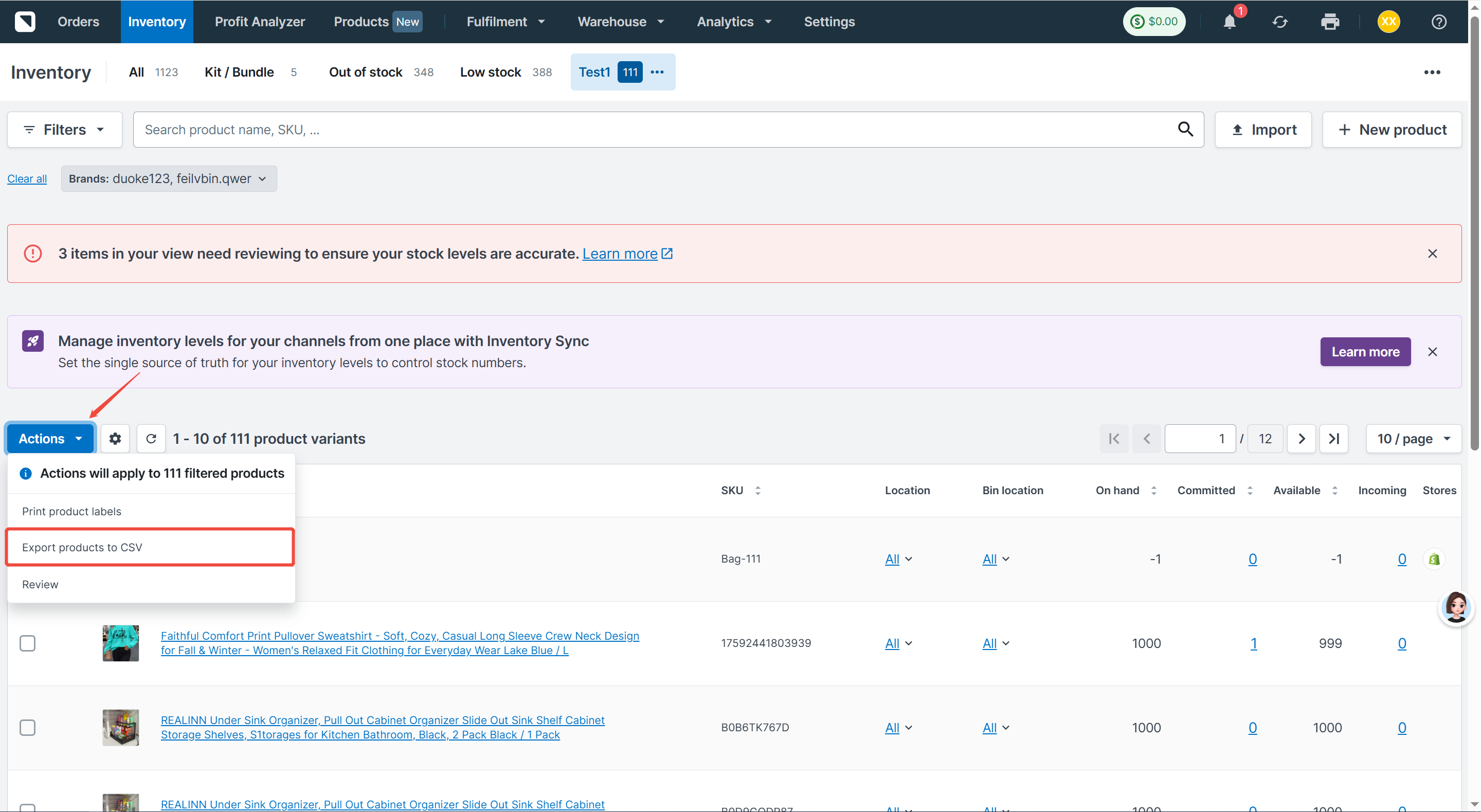
Step 2. Select the Export Option
Click Actions → Export products to CSV
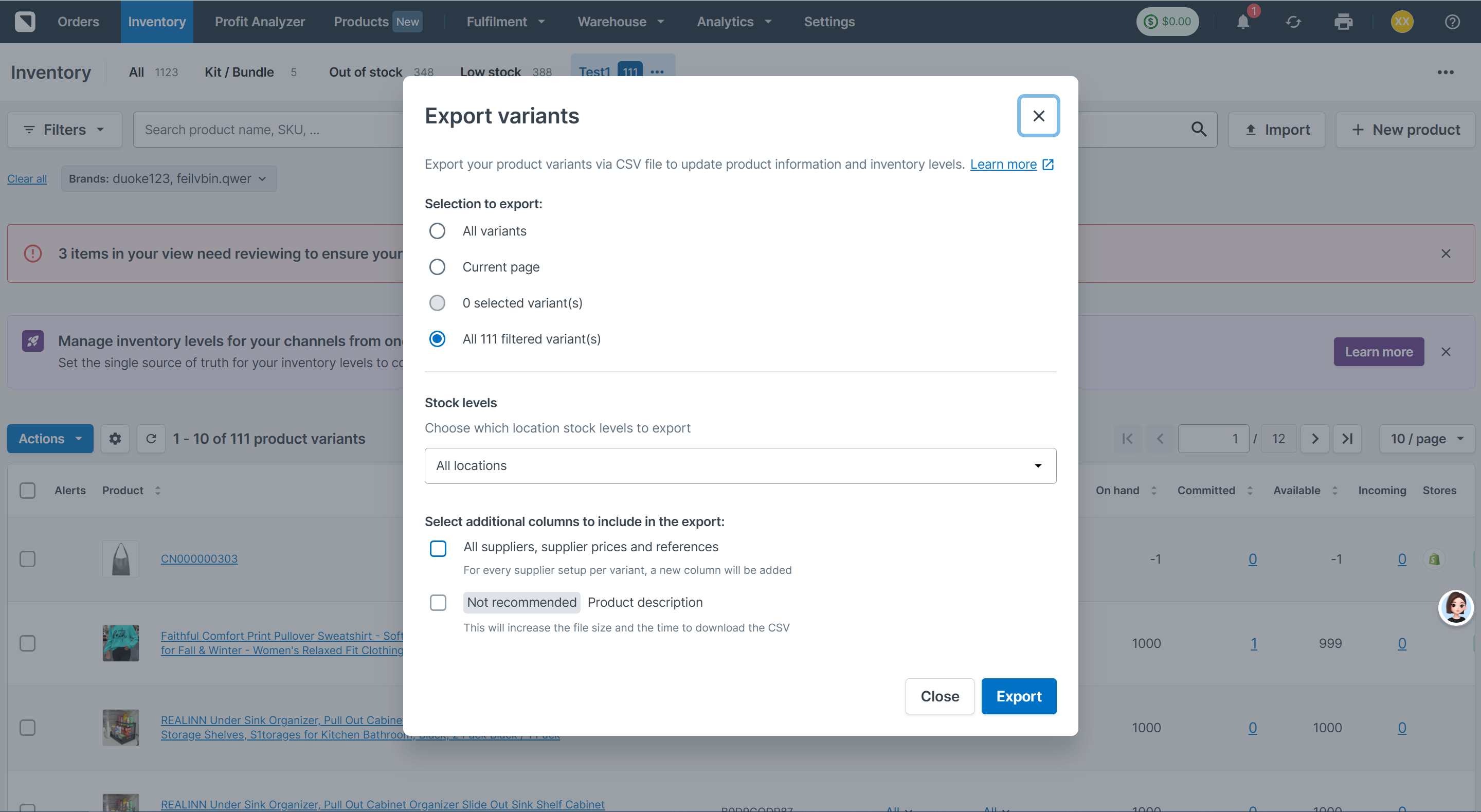
Step 3. Choose the Export Scope and Warehouse
To export all products, select All variants.
To export filtered results only, select All filtered variants.
To export specific products, select the products first, then choose Selected variants.
For inventory quantities, select All Locations to include inventory across all warehouses, or choose a specific warehouse.
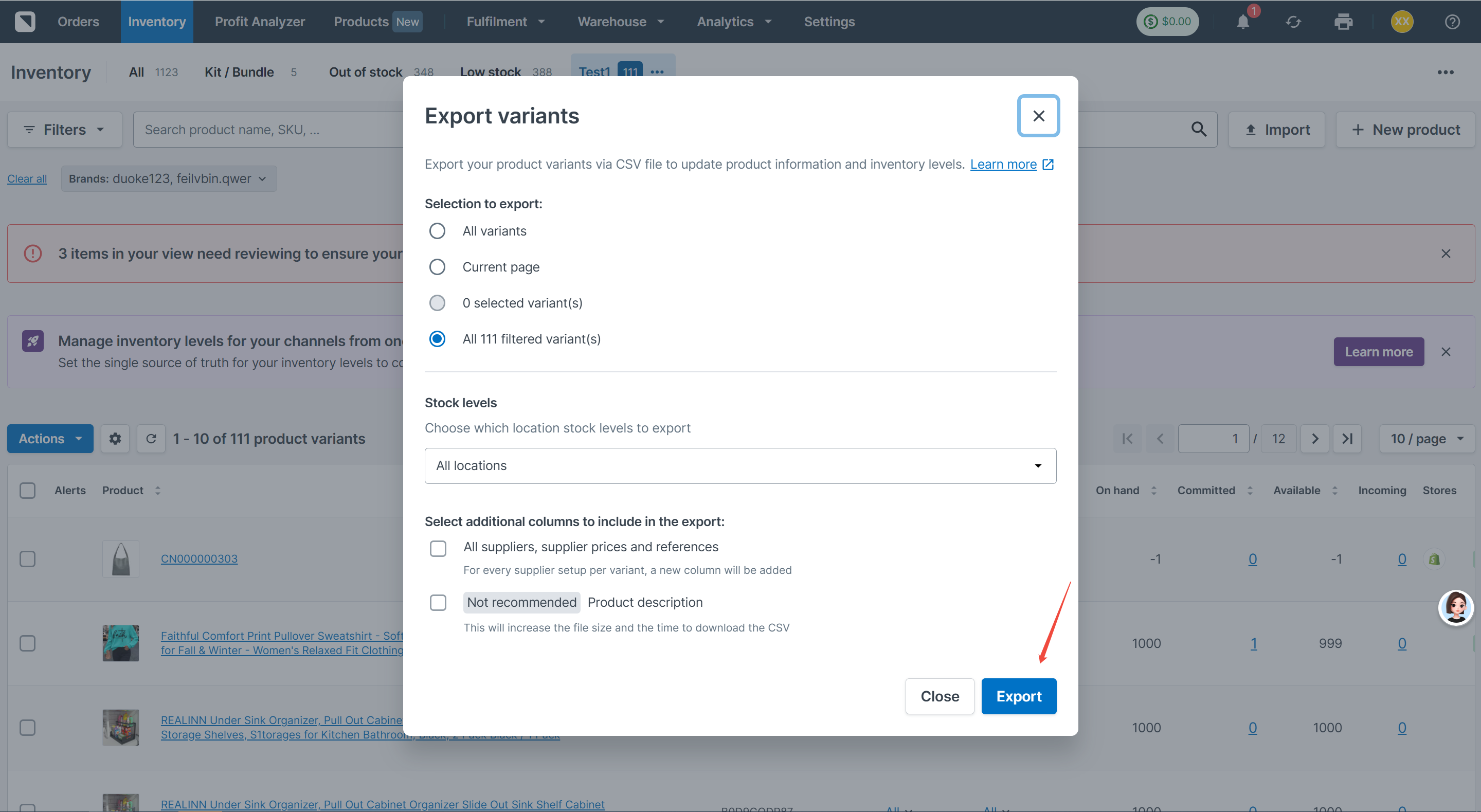
Step 4. Start exporting products and inventory
Click Export to export products and inventory.
Step 5: Download the CSV File
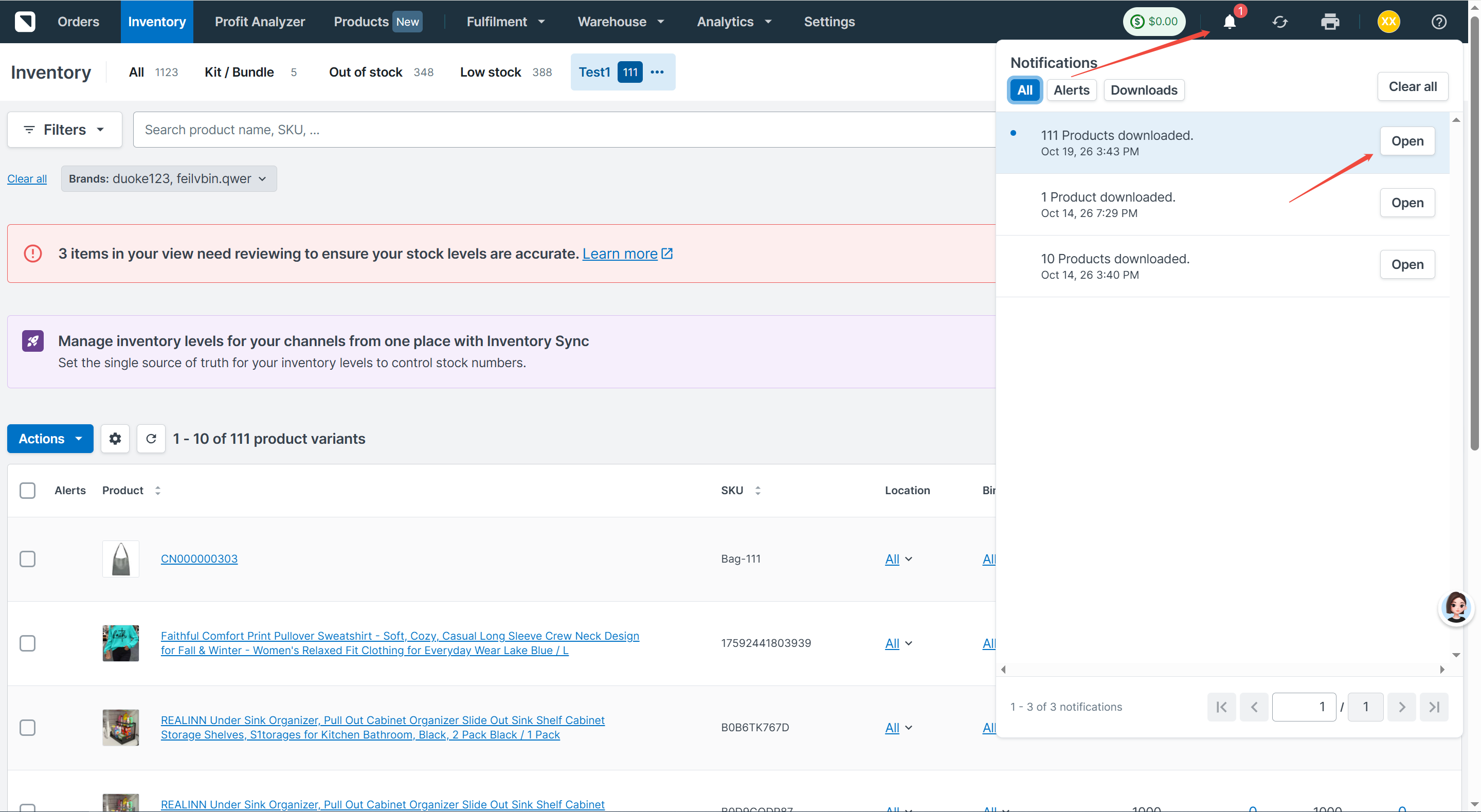
Once the export is complete, follow the notification in the upper-right corner of the page to download the file.
Any problem feel free to contact 4Seller support team: support@4seller.com


Back to top